
Create art-directed photographic hero sections with responsive compositions, focal-point-aware images, built-in content, calls to action, and optional motion — directly inside Gutenberg.
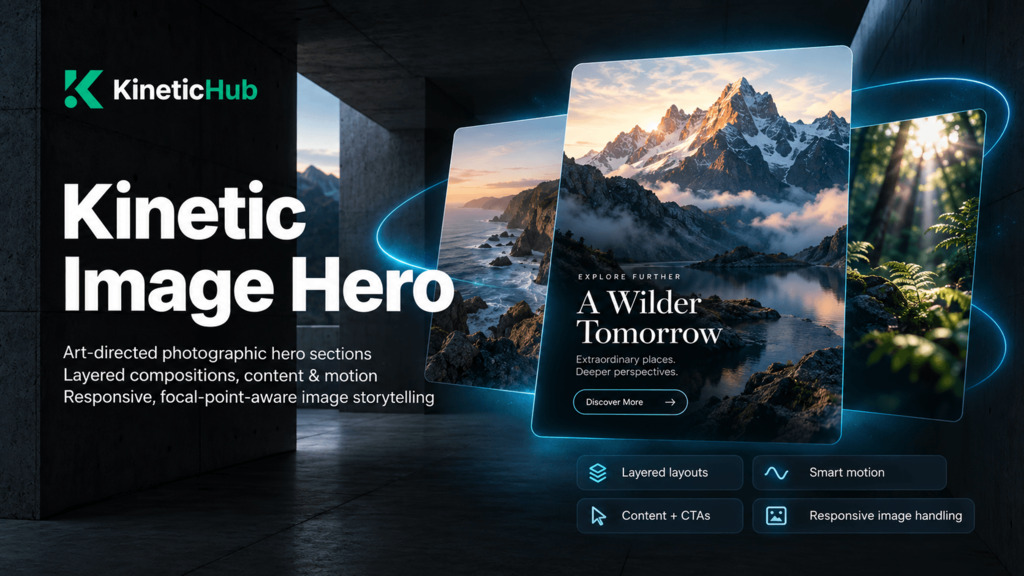
Start here: Choose a presentation, add the required images, set focal points, enter your content, and check the mobile layout. Add motion only after the static hero looks right. Kinetic Image Hero works without animation.
Quick reference
| Feature | KineticHub FREE | KineticHub PRO |
|---|---|---|
| Images | Up to 2 | Up to 3 |
| Presentations | Single, Split Duo, Offset Duo | All FREE layouts + Stacked Cards, Editorial Collage |
| Presets | Clean Split, Floating Duo | All FREE presets + Layered Studio, Editorial Showcase, Cinematic Edge |
| Image control | Focal Point, Cover/Contain, alt text, decorative flag, Frame Background where applicable | All FREE controls + separate mobile image per slot |
| Composition | Balanced/Large, standard ratios and overlap | Adds Oversized, 35/65 ratio and Strong Content Overlap |
| Motion | None, Hover; Fade & Rise / Scale image reveal | Adds Scroll / Scroll + Hover, advanced reveals and image staggering |
| Smart Addons | Card Focus, Smart Readability | Adds Pointer Depth, Reactive Spotlight, Stack Fan, Focus Reveal, Depth on Scroll, Scroll Drift |
| Accessibility and responsive behavior | Included | Included |
Note: Some settings appear only when the selected Presentation, Image Fit, or Motion Mode supports them. An unavailable control is not necessarily a problem with your installation.
Where to find the settings
The Gutenberg canvas is where you edit the eyebrow, badge, heading, description, and button content. Most image, layout, styling, and motion settings are in the selected block’s Inspector sidebar.
| Area | Main controls |
|---|---|
| Images | Image order, Replace/Remove, Focal Point, Image Fit, Frame Background, alt text, Mobile Image (PRO) |
| Presentation / Presets | Five presentation types (some PRO), coordinated presets |
| Content | Placement, width, spacing, heading level/size, eyebrow, badge, content surface and entrance |
| Buttons | Link, target/rel, style, icon, size, arrangement, mobile behavior, hover |
| Composition | Scale, balances, overlap, split, gap, radius, shadow, rotation, offset, stagger, depth |
| Appearance | Minimum height, overlay, Scene Backdrop and its intensity |
| Motion and Reveal | Motion Mode, intensity, Reveal Style, Stagger Images (PRO) |
| Smart Addons | Card Focus and Smart Readability; additional advanced PRO effects |
| Responsive | Mobile Composition and Mobile Order |
The exact set of visible options depends on the current presentation and edition. Read the sections below for behavior and availability.
Overview
Kinetic Image Hero is a Gutenberg block for building art-directed photographic hero sections.
Instead of treating a hero as a single background image with text placed over it, Image Hero combines photography, composition, content, responsive behavior, and optional motion into one controlled block.
It can include:
- One, two, or — with KineticHub PRO — three images
- An eyebrow
- A badge
- A heading
- A description
- Up to two call-to-action buttons
- Focal-point-aware image cropping
- Multiple image presentations
- Responsive composition controls
- Optional image reveals and motion
- Scene backdrops and visual atmosphere
- Smart interaction addons
Use Kinetic Image Hero for:
- Homepage hero sections
- Product and service landing pages
- Portfolio and studio introductions
- Campaign and launch pages
- Property, travel, hospitality, or location-led pages
- Product photography
- Editorial and feature openers
- Case-study introductions
- Brand and agency pages
The block is server-rendered and uses responsive images generated by WordPress.
Motion is optional. With motion disabled, Image Hero remains a complete static composition.
What Kinetic Image Hero is not
Kinetic Image Hero is not a gallery or slider.
Every image used by the active presentation belongs to one composition rather than cycling through slides.
It is also not a freeform page builder. Images are positioned according to the selected presentation instead of being freely dragged anywhere on the canvas.
Image Hero does not contain arbitrary nested Gutenberg blocks.
Its content system is intentionally focused around:
- Eyebrow
- Badge
- Heading
- Description
- Primary button
- Secondary button
This keeps the block predictable, responsive, and purpose-built for hero sections.
Kinetic Image Hero or Kinetic Hero Mesh?
Both blocks create hero sections, but they solve different design problems.
Kinetic Image Hero
Choose Kinetic Image Hero when photography carries the page.
It is designed around:
- Real photographs
- Product imagery
- People
- Places
- Portfolio work
- Campaign imagery
- Art-directed compositions
- Responsive cropping
The images are part of the content and visual hierarchy.
Kinetic Hero Mesh
Choose Kinetic Hero Mesh when the visual atmosphere itself is the background.
Hero Mesh is better suited to:
- Abstract animated backgrounds
- Generative visuals
- Technology pages
- SaaS pages
- Creative effects
- Hero sections containing arbitrary nested Gutenberg blocks
Using them together
The two blocks can also be combined.
For example, place an Image Hero over:
- Kinetic Hero Mesh
- Kinetic Ambient Aura
- A Gutenberg Group with a background
- Another decorative page background
Then make the Image Hero background transparent so the parent visual remains visible around the photographs. Arrange the background at the parent/section level: Image Hero itself does not accept arbitrary nested blocks.
See Transparent Background later in this guide.
Add Kinetic Image Hero
- Open a page or post in the WordPress block editor.
- Open the block inserter.
- Search for Kinetic Image Hero or image hero.
- Insert the block.
- Select one or more images from the Media Library.
- Add your heading and supporting content directly on the canvas.
- Choose a Presentation or apply a Preset.
- Configure your buttons in the block sidebar.
- Adjust composition, appearance, responsive behavior, and motion as required.
- Preview the finished hero on the public frontend.
Image Hero uses Full width by default when supported by the active theme.
Wide alignment is also available.
Empty content fields are omitted from the frontend completely, so leaving an eyebrow, badge, description, or button empty does not leave unnecessary spacing.
Images
The Images panel controls the photographs used by the composition.
Primary image
The first image in the list is always the Primary image.
It leads the composition and normally carries the greatest visual importance.
The primary image is also given higher loading priority than secondary images because hero imagery frequently appears near the top of the page.
Add images
Select images from the WordPress Media Library.
KineticHub FREE supports up to two images in its available presentations.
KineticHub PRO can use a third image with presentations designed for it.
The number of visible images also depends on the selected presentation.
Reorder images
Use the image movement controls to move an image up or down.
Changing the order changes its role in the composition.
For example, moving an image into the first position makes it the Primary image.
Replace an image
Use Replace to change the media file for an existing image slot.
Replacing an image resets settings that belonged specifically to the previous file, including:
- Focal point
- Image Fit
- Custom alternative text
- Frame Background
In PRO, replacing the desktop image also clears its separate mobile replacement because that mobile image was associated with the previous source.
Remove an image
Removing an image removes it only from the Image Hero.
The original media file remains in the WordPress Media Library.
Images that are not currently used
Changing presentation never intentionally destroys unused image data.
For example, if a hero contains multiple images and you switch to Single, only the Primary image is shown.
The remaining images stay saved with the block.
Switching back to a multi-image presentation restores them.
Focal Point
When Image Fit is set to Cover, every image has its own focal point. The focal point is saved per image and is retained if you temporarily switch to Contain.
The focal point tells Image Hero which part of the photograph should remain important when the image is cropped into different frame shapes.
Use it for:
- Faces
- Products
- Buildings
- Vehicles
- Text inside photography
- Important visual details
The exact crop can change as the viewport changes.
Always check both desktop and mobile after adjusting the focal point.
Design tip
Do not automatically leave every focal point in the centre.
A composition often looks substantially better when the focal point follows the real subject of the photograph.
Image Fit
Each image supports its own Image Fit behavior.
Cover
Cover is the default.
The photograph fills the complete frame.
Some of the image may be cropped when its aspect ratio differs from the frame.
The Focal Point decides which area is prioritised.
Use Cover for most normal photographic hero designs.
Contain
Contain displays the complete image inside the frame.
Empty space may remain around the image when its shape differs from the frame.
Use Contain for content that should not be cropped, such as:
- Product cut-outs
- Device mockups
- Posters
- Screenshots
- Packaging
- Illustrations
- Artwork containing text
Contained images are not zoomed or shifted by motion effects that would cause them to become cropped.
The saved focal point remains available if you later return the image to Cover.
Frame Background
When an image uses Contain inside a composed presentation, Image Hero can provide a background behind the contained image.
This option appears where a card-style image frame actually exists.
Frame Background On
This is the normal/default behavior.
The complete frame receives a solid backing.
This prevents another overlapping image or the section background from showing through unused areas around a contained image.
Frame Background Off
The backing is removed.
The contained image can appear to float directly over the section background.
The card shadow is retained.
Because the shadow still follows the complete image frame, a subtle outline of that frame may remain visible, especially:
- On very light backgrounds
- With strong shadows
- When a landscape image sits inside a portrait-oriented card
This is expected behavior.
Where Frame Background is available
It is useful in composed presentations such as Offset Duo.
Single and Split Duo place contained images directly against the hero section, so a separate card backing is not required there.
Alternative Text
Every image can use alternative text for assistive technology.
Use Media Library alternative text
Leave the Image Hero alternative-text field empty to use the current alternative text stored in the WordPress Media Library.
The value is read when the page renders.
This is useful when the same description is appropriate everywhere the image is used.
Custom alternative text
Enter custom alternative text when this specific use of the image requires a different description.
Once custom text is entered, that text is used instead of the Media Library value for this hero.
Decorative Image
Enable Decorative image when the photograph adds no information that a visitor needs to understand the page.
The image then receives empty alternative text so screen readers can skip it.
Do not mark an image decorative merely because the hero also contains a heading.
If the photograph communicates useful information, describe it.
Mobile Image — PRO
KineticHub PRO can assign a separate mobile image to any desktop image.
The mobile image is used on screens 768px wide and below. Check the actual browser viewport, not just the device model.
This is useful when the desktop photograph does not crop well on a narrow screen.
Typical examples include replacing:
- A wide landscape image with a portrait crop
- A wide product photograph with a closer crop
- A group photograph with a subject-focused crop
- A desktop campaign graphic with a mobile-specific version
The replacement occupies the same image slot as the desktop image.
It uses the same Image Fit setting.
Because the mobile file may be composed differently, its position begins centred rather than inheriting the focal point of the desktop photograph.
The same alternative-text description applies.
Replacing the main desktop image clears its mobile replacement.
Presentations
A Presentation controls how Image Hero arranges its photographs and how the content relates to them.
Single
Single uses the Primary image as the hero visual.
The image fills the hero area and the content is positioned over it.
Use:
- Overlay Color
- Overlay Opacity
- Content Surface
- Smart Readability
when text needs more separation from the photograph.
Single works especially well for:
- Campaign headers
- Photography-led homepages
- Destination pages
- Product launches
- Full-screen hero sections
Split Duo
Split Duo places two images side by side.
When Gap is 0, the two images meet edge to edge and behave visually like one continuous photographic backdrop.
When Gap is increased, they become distinct cards.
Split
Available ratios are:
- 50 / 50
- 40 / 60
- 60 / 40
Use the larger side for the photograph that needs more emphasis or for the side carrying the main content.
Split Duo works well for:
- Two related products
- Paired portraits
- Location comparisons
- Complementary brand imagery
- Editorial layouts
Offset Duo
Offset Duo creates a more editorial two-image composition.
The Primary image forms the main visual field while a smaller secondary image overlaps it.
Controls such as Overlap and Vertical Offset determine how the second image relates to the first.
Use Offset Duo when you want stronger visual hierarchy than Split Duo without moving into a full collage.
With centred content, the image composition moves below the content.
Stacked Cards — PRO
Stacked Cards displays two or three photographs as layered cards.
The Primary image remains at the front.
Secondary images step outward behind it.
A third image becomes the deepest card.
Use Depth to control how widely the rear cards separate.
This presentation works especially well for:
- Portfolios
- Photography collections
- Product families
- Agency work
- Campaign imagery
Stacked Cards can also combine with Stack Fan for an interactive hover treatment.
Editorial Collage — PRO
Editorial Collage builds a magazine-style composition from two or three images.
It uses:
- A large Primary image
- A differently proportioned secondary image
- An optional smaller third accent image
Stagger controls how far the secondary image drops relative to the Primary.
This presentation is designed for stronger art direction and works well for:
- Fashion
- Architecture
- Editorial content
- Creative campaigns
- Portfolio introductions
- Premium product pages
Content Position
Content Position can be controlled from the block toolbar and from Horizontal placement inside the Content panel.
Single and Split Duo
The content can sit:
- Left
- Centre
- Right
over the photographic area.
Composed presentations
For Offset Duo, Stacked Cards, and Editorial Collage:
- Content Left places the composition to the right
- Content Right places the composition to the left
- Content Centre places the image composition underneath
RTL languages are mirrored automatically.
Presets
Presets provide curated starting points.
They configure several related settings together, including:
- Presentation
- Composition
- Atmosphere
- Motion
- Content styling
- Button styling
Presets do not replace:
- Your images
- Your written content
- Your links
After a preset is applied, every individual setting remains editable.
Clean Split
A restrained two-image layout designed for general business use.
It combines:
- Split Duo
- Clean card separation
- A subtle hover treatment
- Gentle reveal motion
- Restrained typography
- Coordinated button styling
Use it when you want a polished result without a highly experimental composition.
Floating Duo
A more dimensional Offset Duo setup.
It combines:
- Large Primary image
- Floating secondary card
- Soft Glow
- Hover motion
- Card Focus
- Lift-style button interaction
Use it for product, creative, portfolio, or service pages that need more visual depth.
Layered Studio — PRO
A three-card Stacked Cards composition.
It combines:
- Floating shadows
- Scale reveal
- Layered card depth
- Hover motion
- Stack Fan
Use it for a strong portfolio or studio-style hero.
Editorial Showcase — PRO
A larger Editorial Collage composition.
It combines:
- Three-image collage
- Oversized image scale
- Dual Glow
- Clip reveal
- Staggered image reveal
- Scroll and hover depth
- Display typography
Use it for campaign-level art direction.
Cinematic Edge — PRO
A full-screen Single-image hero.
It combines:
- Large photographic field
- Display-scale heading
- Lower content placement
- Vignette
- Smart Readability
- Blur → Sharp reveal
- Subtle scroll motion
Use it when one photograph should dominate the complete opening section.
Preset with missing images
If a preset expects more images than the block currently contains, it applies the settings it can use. Add the remaining images afterwards; a multi-image presentation can temporarily appear as Single until sufficient images are assigned.
Content
Image Hero content is edited directly on the Gutenberg canvas.
Available content includes:
- Eyebrow
- Badge
- Heading
- Description
- Primary button
- Secondary button
The Content panel controls presentation and typography.
Layout
Horizontal Placement
Controls the left, centre, or right position described in Content Position.
Vertical Placement
Choose:
- Top
- Centre
- Bottom
This controls where the content sits vertically inside the hero.
Content Width
Choose:
- Narrow
- Standard
- Wide
- Custom
Custom width supports values from 320px to 1200px.
The actual available composition space still limits the content, so text cannot simply run through the image composition.
Design tip
Use Narrow or Standard for most hero copy.
Wide content is most useful for large editorial headings or very short copy.
Spacing
Choose:
- Compact
- Balanced
- Airy
This changes the vertical rhythm between:
- Eyebrow
- Badge
- Heading
- Description
- Buttons
Typography
Heading Level
Choose:
- H1
- H2
- H3
- H4
- H5
- H6
Heading level controls semantic document structure.
It does not control the visual heading size.
Use H1 only when the Image Hero contains the primary heading of the page and another H1 is not already being output by the theme or page template.
Heading Size
Choose:
- Large
- XL
- Display
XL is the standard large hero treatment.
Display is intended for short, poster-style headlines.
Design tip
Display works best for a few words.
For long headlines, Large or XL usually creates a more controlled responsive result.
Description Size
Choose:
- Normal
- Large
The typeface and font weight continue to follow the active theme.
Eyebrow
Use the eyebrow for small contextual information above the main heading.
Examples:
- NEW RELEASE
- WEB DESIGN
- CASE STUDY
- AUTUMN 2026
- BUILT WITH KINETICHUB
Eyebrow Style
Choose:
- Plain
- Accent Line
- Pill
Keep eyebrow text short.
Badge
The badge provides a second small visual label.
Badge Style
Choose:
- Minimal
- Soft
- Glass
Use the badge for short status or category information rather than full sentences.
Content Surface
The Content Surface places a visible treatment behind the text.
Choose:
- None
- Soft Panel
- Glass
Use a surface when photography behind the content is visually complex.
It can also be combined with Overlay Opacity or Smart Readability.
Do not automatically add a strong surface to every hero.
If the photograph already provides enough negative space, leaving Content Surface at None usually produces a cleaner result.
Content Entrance
Content motion is separate from image motion.
Entrance style
Choose:
- None
- Fade & Rise
- Clip
- Blur → Sharp
The content appears once in reading order:
- Eyebrow and badge
- Heading
- Description
- Buttons
Timing
Choose:
- With the images
- Just after
- After the images
The Gutenberg editor displays the content at rest.
The complete entrance sequence runs on the published frontend.
Buttons
Image Hero supports up to two call-to-action buttons.
A button appears on the frontend only when it contains both:
- Button text
- A valid link
This prevents empty controls from appearing on the published page.
Link URL
Enter the destination URL.
Open in New Tab
Enable this when the destination should open separately.
When a link opens in a new tab, KineticHub adds the appropriate noopener behavior automatically.
Link Rel
Optional relationship values can be used where required, including:
nofollowsponsored
Button Style
Choose:
- Solid
- Outline
- Ghost
- Glass
Button treatments use the overall hero color system. Check contrast on the actual background, especially when using Ghost or Glass styles.
Icon
Choose:
- None
- Arrow
- External Arrow
Icons are decorative and are not announced independently by screen readers.
Button Size
Choose:
- Medium
- Large
Arrangement
Choose:
- Side by side
- Stacked
On Mobile
Choose:
- As on desktop
- Stacked
- Stacked, full width
Full-width stacked buttons are useful when touch targets would otherwise become too cramped.
Hover
Choose:
- None
- Lift
- Arrow Shift
- Glow
Where appropriate, the same interaction treatment is also represented during keyboard focus. Button meaning and navigation must remain clear without hover.
Composition
The Composition panel controls the geometry of the photographs.
It appears for every Presentation except Single.
Composition Scale
For composed layouts, choose how much visual space the photography occupies.
Balanced
Keeps the composition more contained within the central page area.
Large
Allows the photographs to claim more of the hero.
Oversized — PRO
Lets the image composition push further toward or beyond the outer edge for a more poster-like treatment.
On mobile, supported Oversized compositions can extend much more strongly across the available width.
Content / Media Balance
For side-by-side composed layouts, choose how desktop width is shared.
FREE includes:
- 50 / 50
- 40 / 60
PRO also includes:
- 35 / 65
The setting applies when content is aligned left or right.
Use more media width when photography should dominate.
Use a more balanced split when the copy contains a longer message.
Content Overlap
Content Overlap lets the image composition extend underneath part of the content area.
Choose:
- None
- Subtle
- Strong — PRO
When overlap is active, Image Hero provides a background treatment behind the content so the text remains readable.
Content Overlap is a desktop treatment.
Split
For Split Duo, choose:
- 50 / 50
- 40 / 60
- 60 / 40
This determines the width relationship between the two photographs.
Gap
Gap (px) controls space between image cards.
In Split Duo:
- Gap
0creates an edge-to-edge image field - Higher values turn the images into separate cards
On mobile, Gap is capped at 16px to keep the composition practical on narrow screens.
Card Radius
Card Radius (px) rounds the corners of the images.
A low radius gives a sharper editorial result.
A larger radius creates a softer card-based design.
Shadow
Choose:
- None
- Soft
- Floating
Soft provides subtle separation.
Floating creates stronger depth and is particularly useful with Offset Duo and layered compositions.
Rotation
Rotation adds opposing angles to the image cards.
The available range extends up to approximately 8°.
Use restrained values for most production sites.
On mobile, rotation is reduced and may be removed entirely when the composition stacks.
Overlap
Available for Offset Duo.
Overlap controls how far the secondary image extends over the Primary image.
Low values create a cleaner separated composition.
Higher values create stronger visual layering.
Vertical Offset
Available for Offset Duo.
Vertical Offset controls how far the secondary card hangs below or shifts relative to the Primary image.
This is primarily a desktop composition control.
Stagger
Depending on the active Presentation, Stagger controls positional separation.
For Split Duo with a visible Gap, one image can rise while the other drops.
For Editorial Collage in PRO, Stagger controls how far the secondary image drops relative to the Primary image.
Depth — PRO
Depth is used with Stacked Cards.
It controls how far the rear cards step outward behind the Primary image.
Use lower values for a compact stack and higher values for a more visible layered fan.
Resetting composition values
Presentations have their own intended starting geometry.
When a composition value has not been manually changed, Image Hero can use the tuning designed for that presentation.
Once you change a value, your selected value is preserved while moving between presentations.
Using Reset returns that control to the presentation’s own tuning.
Appearance
The Appearance panel controls section height, image overlay, and scene atmosphere.
Hero Minimum Height
Image Hero provides separate minimum heights for:
- Desktop
- Mobile
The range is 30vh to 100vh.
100vh corresponds approximately to one full viewport height.
This is a minimum height, not a rigid fixed height.
If the hero content requires more room, the section can grow taller.
Design tip
Avoid forcing short mobile screens into a 100vh composition when the hero contains a long headline, description, and two buttons.
Allow the content to breathe.
Overlay
For presentations where photography fills the hero — primarily Single and Split Duo — Image Hero can draw an overlay over the photographs and behind the content.
Use:
- Overlay Color
- Overlay Opacity
Increase opacity when text lacks sufficient contrast against a busy photograph.
Composed presentations position content beside the photography, so this image overlay is not drawn in the same way there.
The section background and text colors are controlled through the normal WordPress Styles panel.
Scene Backdrop
Scene Backdrop adds atmosphere around the composition using the KineticHub accent color.
None
No additional backdrop effect.
Soft Glow
Adds a restrained halo around the composition.
Gradient Wash
Adds a wider diagonal wash of accent light.
Dual Glow — PRO
Adds two complementary light sources around the composition.
Accent Panel — PRO
Adds a more graphic accent-color panel behind the scene.
Vignette — PRO
Darkens or shades the outer edges for a more cinematic result.
Vignette can also be used with Single and Split Duo because it can shade the edges of the full image frame.
Backdrop Intensity
Choose:
- Subtle
- Medium
- Strong
Intensity changes the strength of the selected backdrop without changing its basic structure.
Design tip
For normal business and product sites, begin with Subtle or Medium.
Strong works best when the visual design intentionally calls for a more expressive hero.
Transparent Background
Image Hero can sit over another visual layer.
To make the hero section itself transparent:
- Open the normal WordPress Styles panel.
- Edit the Image Hero Background color.
- Set its opacity to
0%.
You can then allow:
- Hero Mesh
- Ambient Aura
- A Group background
- A gradient
- Another decorative parent layer
to show through around the Image Hero composition.
A selected Scene Backdrop still renders even when the section background is transparent.
Motion and Reveal
Image Hero does not require animation.
Motion is off by default.
Image motion and text motion are also separated intentionally.
Motion Mode
None
The default.
Images remain still.
Hover
Available in FREE.
Images gain a subtle layered response while a mouse or trackpad pointer is over the hero.
Hover motion is not required to understand or use the hero.
Touch devices display the resting composition.
Scroll — PRO
Images move by different restrained amounts as the page scrolls.
Scroll + Hover — PRO
Combines both motion systems.
Motion Intensity
FREE includes:
- Subtle
- Medium
PRO adds:
- Strong
Intensity controls how far the images move.
Design tip
Subtle is the recommended starting point for business and content-heavy websites.
More movement is not automatically better.
Reveal Style
Reveal Style controls how images appear the first time the hero enters the viewport.
FREE includes:
- None
- Fade & Rise
- Scale
PRO adds:
- Clip
- Blur → Sharp
A hero already visible when the initial page opens is not intentionally hidden waiting for a reveal.
Stagger Images — PRO
When enabled, image reveals occur one after another.
The Primary image appears first, followed by the remaining images with a short delay.
Use Stagger with multi-image compositions when you want the visual hierarchy to unfold gradually.
Editor and Frontend Motion
The Gutenberg editor intentionally does not reproduce every frontend animation.
Inside the editor:
- The hero is primarily shown at rest
- Hover can be previewed where supported
- Scroll-driven effects are not the final frontend reference
- Reveal animations do not continually replay
- Content entrance is displayed at rest
Always preview the published or preview frontend before judging the finished motion.
Smart Addons
Smart Addons are optional refinements.
They appear only when the current Presentation and Motion Mode can use them.
If an addon depends on Hover or Scroll and the required Motion Mode is not active, it has no visual effect until the required motion family is enabled.
Card Focus
Available in FREE.
Works with two or more images and Hover motion.
When the pointer moves over an image:
- That photograph becomes more visually prominent
- Other cards step back slightly
- The composition retains its intended ordering
Use Card Focus to help visitors inspect individual photographs without turning the hero into a gallery.
Smart Readability
Available in FREE.
Smart Readability improves text separation in layouts where content appears over or partially over photography.
It can be used with:
- Single
- Split Duo
- Content Overlap
The effect places a soft tonal transition behind the content.
It responds to the content color direction but does not analyse the actual photograph.
You should still visually verify contrast.
Pointer Depth — PRO
Available for composed presentations with Hover motion.
Different image layers move by slightly different amounts in response to the pointer.
This creates depth without turning the composition into a dramatic 3D effect.
Mouse and trackpad only.
Reactive Spotlight — PRO
Adds a soft accent light that follows the pointer.
In composed layouts it moves behind the cards.
Over a full-width photograph it becomes a restrained sheen.
Mouse and trackpad only.
Stack Fan — PRO
Available with:
- Stacked Cards
- Hover motion
The rear cards open into a small fan while the hero is hovered and return to their resting stack when the pointer leaves.
Focus Reveal — PRO
Works with two or more images and Hover motion.
Each photograph begins slightly zoomed within its frame.
When the pointer moves over it, the photograph opens back toward its complete frame around its focal point.
Depth on Scroll — PRO
Available with Scroll motion and multiple images.
Image planes move at different rates.
Nearer layers can grow slightly while individual photographs shift within their frames, creating a restrained window-like depth effect.
Scroll Drift — PRO
Available with Scroll motion in composed presentations.
Secondary planes drift slightly sideways and rotate by a small additional amount as the visitor scrolls.
The block clips the composition so this movement does not intentionally create horizontal page overflow.
Touch Devices
Pointer-based effects are enhancements only.
On touch devices:
- Hover motion is not required
- Pointer Depth does not run as a required interaction
- Reactive Spotlight does not need pointer tracking
- Visitors still see the complete hero
- Content remains readable
- Buttons remain usable
No important information should depend on hovering a photograph.
Responsive and Mobile Behavior
Image Hero uses 768px as its main mobile breakpoint.
At and below this width, the composition adapts for smaller screens.
Mobile Composition
For heroes containing multiple images, choose:
- Auto
- Stack
- Primary Only
Auto
Auto selects the small-screen treatment designed for the current Presentation.
For example:
- Split Duo stacks its two images vertically
- Offset Duo retains a smaller controlled overlap
In PRO:
- Stacked Cards keeps a tighter version of the stack
- Editorial Collage places the Primary image prominently with supporting images underneath
Stack
Places the images one underneath another.
Rotation is removed so the stack remains clean and predictable.
Primary Only
Displays only the Primary image on mobile.
Secondary lazy-loaded images are not needed for the visible mobile composition.
Use Primary Only when a complex desktop composition would add little value on a phone.
Mobile Order
For composed presentations, choose:
- Content First
- Media First
Use Content First when the message should be encountered immediately.
Use Media First when the photography is the primary introduction.
Other Mobile Adjustments
At the mobile breakpoint:
- Desktop Hero Min Height is replaced by the Mobile value
- Buttons use the selected On Mobile behavior
- Gap is capped at 16px
- Rotation is reduced or removed
- Complex overlaps are simplified
- Desktop Content / Media ratios no longer control the narrow layout
- Desktop Content Overlap no longer behaves as a wide-screen overlap system
These changes are designed to preserve the composition rather than simply shrinking the desktop version.
Accessibility
Image Hero is designed so motion remains an enhancement rather than a requirement.
Reduced Motion
When the visitor enables a reduced-motion preference at operating-system or browser level:
- Image movement stops
- Image reveal animations are skipped
- Content entrance is skipped
- Pointer-dependent motion is suppressed
- Button motion is reduced, with Glow remaining where appropriate
The hero remains visible and usable.
Keyboard
Buttons are normal links.
They:
- Can receive keyboard focus
- Display a visible focus treatment
- Retain their functional destination
- Do not require pointer interaction
Where appropriate, the selected button hover treatment is also represented on keyboard focus.
Button Icons
Decorative button icons are hidden from screen readers.
Alternative Text
Image Hero supports:
- Media Library alt text
- Per-hero alternative text
- Explicit decorative images
Use the option that best matches the image’s meaning in this particular context.
Heading Structure
Heading level and visual heading size are independent.
This allows a Display-style visual heading to remain an H2, H3, or other appropriate semantic level.
Maintain a logical document outline.
Color Contrast
Image Hero does not perform semantic image analysis.
Always inspect real contrast between:
- Text
- Buttons
- Photography
- Overlays
- Content surfaces
Use Overlay Opacity, Smart Readability, Content Surface, or different text colors where needed.
Performance
Kinetic Image Hero is designed to remain useful as a static block before optional motion is added.
Image loading
The Primary image receives high loading priority.
Secondary images load lazily.
This matches the visual importance of the Primary image in a hero section.
Responsive images
Images use WordPress responsive-image sources and sizing information.
Different composition slots receive size information suited to the space they occupy.
This helps browsers select a more appropriate file instead of automatically loading the original full-resolution upload everywhere.
Frontend JavaScript
The small Image Hero frontend script is loaded only when the selected settings need it.
Examples include:
- Image reveal
- Content entrance
- Scroll motion
- Pointer Depth
- Reactive Spotlight
A fully static Image Hero does not require that interaction script.
A hero using only CSS hover behavior also avoids unnecessary scripted animation.
When several Image Hero blocks require the frontend script on the same page, it is loaded once.
Hover Effects
Core hover effects use CSS where possible.
Animation Dependencies
Image Hero does not require a third-party animation library.
Performance hint
Optimise hero photographs before uploading them.
A full-width Primary photograph often becomes one of the largest visual assets on the initial page view.
As a practical starting point, a good full-width source photograph is often around 2000–2560px wide, depending on the composition and expected display density.
Do not upload an unnecessarily huge source file purely because the hero is large.
KineticHub Free and PRO
KineticHub Free includes a complete photographic hero workflow rather than a restricted demo.
KineticHub Free includes
- Single
- Split Duo
- Offset Duo
- Up to two images
- Focal Point
- Cover and Contain
- Frame Background
- Alternative text
- Decorative images
- Full built-in content system
- Eyebrow
- Badge
- Heading
- Description
- Up to two buttons
- All core content layout controls
- Typography controls
- Content surfaces
- Content entrance
- Core composition controls
- Balanced and Large composition scale
- 50 / 50 and 40 / 60 content/media balance
- Subtle Content Overlap
- None Scene Backdrop
- Soft Glow
- Gradient Wash
- Hover Motion
- Subtle and Medium motion intensity
- Fade & Rise image reveal
- Scale image reveal
- Card Focus
- Smart Readability
- Clean Split preset
- Floating Duo preset
- Responsive behavior
- Reduced-motion support
- Accessibility features
- Responsive image loading
KineticHub PRO adds
- Third image
- Stacked Cards
- Editorial Collage
- Separate mobile images
- Oversized composition scale
- 35 / 65 content/media balance
- Strong Content Overlap
- Dual Glow
- Accent Panel
- Vignette
- Scroll motion
- Scroll + Hover motion
- Strong motion intensity
- Clip reveal
- Blur → Sharp reveal
- Stagger Images
- Pointer Depth
- Reactive Spotlight
- Stack Fan
- Focus Reveal
- Depth on Scroll
- Scroll Drift
- Layered Studio preset
- Editorial Showcase preset
- Cinematic Edge preset
Responsive image behavior, reduced-motion support, accessibility, and core performance protections apply in both editions.
Opening a PRO Hero in KineticHub Free
Image Hero preserves settings that belong to the other edition.
If a hero created in PRO is opened while using KineticHub Free, unsupported PRO settings are not intentionally deleted.
Instead, the nearest available FREE behavior is displayed.
Examples include:
- Stacked Cards → displayed as Offset Duo
- Editorial Collage → displayed as Offset Duo
- Scroll + Hover → displayed using the available Hover behavior
- Third image → retained but not displayed
- Mobile replacement images → retained but not exposed in the FREE controls
Opening the same block in PRO again restores the saved PRO configuration unless you explicitly changed the relevant settings while working in Free.
This allows a block to round-trip between editions without deliberately destroying PRO configuration.
Recommended Workflow
For most projects, use this order:
- Add the images.
- Choose the correct Presentation.
- Set the Focal Point for every Cover image.
- Add the heading and supporting copy.
- Choose content position and width.
- Configure image composition.
- Check readability.
- Configure buttons.
- Check mobile behavior.
- Add motion only after the static layout already looks intentional.
- Preview the public frontend.
- Test keyboard focus and reduced motion before publishing.
The static composition should be strong before animation is introduced.
Practical Design Tips
Start from a Preset
Presets give you a coherent combination of settings quickly.
Apply one, then adjust the individual controls rather than trying to design every setting independently from zero.
Keep the Primary Image strong
The first image receives the most important role in both visual hierarchy and loading priority.
Choose the strongest photograph as the Primary image.
Set Focal Points early
Do this before tuning motion.
A poorly positioned crop cannot be repaired by animation.
Use Contain intentionally
Contain is best for artwork that must remain completely visible.
Do not use it automatically for ordinary photography because the empty frame space can weaken a photographic composition.
Keep Display headings short
Display typography is intended for impact.
A short statement usually works better than a paragraph-sized headline.
Use one primary CTA
Two buttons are available, but they should still have hierarchy.
Use one clear primary action and one supporting secondary action when necessary.
Match motion to the page
For a corporate, service, or editorial page:
- None
- Hover + Subtle
- Hover + Medium
are usually sufficient.
PRO scroll effects are better used when the page design actually benefits from depth.
Check the real frontend
Do not judge scroll, reveal, or responsive behavior entirely from Gutenberg.
The frontend is the final reference.
Example Workflows
Clean business hero
Try:
- Split Duo
- Clean Split preset
- Standard Content Width
- XL heading
- Soft Panel only if required
- Hover / Subtle
- One primary CTA
This creates a polished but restrained result.
Product hero
Try:
- Offset Duo
- Product photograph as Primary
- Supporting detail image as secondary
- Floating shadow
- Soft Glow
- Card Focus
- One Solid CTA
- One Outline CTA
If the product image must remain completely visible, try Contain with Frame Background.
Full photographic campaign hero
Try:
- Single
- 100vh Desktop Min Height
- Short Display heading
- Controlled Overlay Opacity
With PRO, add:
- Vignette
- Blur → Sharp
- Scroll / Subtle
- Smart Readability
Editorial campaign — PRO
Try:
- Editorial Collage
- Three related photographs
- Editorial Showcase preset
- Short Display headline
- Dual Glow
- Content First or Media First depending on the narrative
- Mobile-specific image crops where required
Troubleshooting
The checks below cover the most common image, layout, motion, mobile and compatibility questions. For unexpected behaviour, first reproduce the issue on the frontend and confirm your installed FREE/PRO edition.
The selected Presentation looks like Single
A presentation that requires additional images falls back visually to Single until enough images are available.
Check the number of images in the Images panel.
The selected Presentation remains saved and will appear automatically when the required images are added.
I switched to Single and my other images disappeared
They are normally not deleted.
Single only displays the Primary image.
Switch back to a multi-image Presentation to use the saved secondary images again.
My important subject is being cropped
Check:
- Image Fit is set to Cover
- Adjust the image’s Focal Point
- Preview the page at both desktop and mobile widths
If the desktop photograph simply cannot crop well on a phone, KineticHub PRO can use a separate Mobile Image.
The full image must remain visible
Set Image Fit → Contain.
This is recommended for:
- Screenshots
- Posters
- Logos
- Product cut-outs
- Device mockups
- Artwork containing text
Expect unused space around the image when its aspect ratio differs from the card.
Contain shows empty space around the image
That is expected.
Contain preserves the complete image instead of cropping it.
You can:
- Leave Frame Background On
- Turn Frame Background Off in supported composed layouts
- Use a source image with a shape closer to the frame
- Switch back to Cover when cropping is acceptable
I turned Frame Background off but can still see the card outline
The background is removed, but the configured card shadow remains.
A soft outline of the full card can therefore still be visible.
Reduce or disable Shadow if the frame outline is not wanted.
My Media Library alt text changed but the hero still uses the old text
Check whether you entered custom Alternative Text directly in Image Hero.
A custom Image Hero value overrides the Media Library value.
Clear the custom field if you want the block to use the Media Library alternative text again.
The mobile image is not appearing — PRO
Check that:
- KineticHub PRO is active
- A Mobile Image is assigned to the correct desktop image slot
- The viewport is 768px wide or below
Also remember that replacing the main desktop image clears the previous mobile replacement.
My text is difficult to read over the photograph
Try one or more of:
- Increase Overlay Opacity
- Change Overlay Color
- Enable Smart Readability
- Use Soft Panel
- Use Glass Content Surface
- Move content to an area with more negative space
- Adjust the Focal Point
- Use a different source image
Image Hero does not analyse the photograph automatically, so visually confirm contrast yourself.
Overlay controls do not seem to affect my composed layout
Overlay is primarily used when images fill the hero, such as Single and Split Duo.
Offset Duo, Stacked Cards, and Editorial Collage place content beside the images rather than directly over the same full photographic field.
Use:
- Section Background
- Content Surface
- Smart Readability
- Content Overlap
for those layouts where appropriate.
Motion works on desktop but not on my phone
Hover and pointer interactions require a mouse or trackpad.
They intentionally do not become required touch interactions.
The mobile visitor sees the stable resting composition.
Hover effects are not working
Check:
- Motion Mode includes Hover
- The device has a fine pointer such as a mouse or trackpad
- Reduced Motion is not enabled
- The selected Smart Addon supports the current Presentation
Some addons are intentionally inactive until their required motion family is enabled.
Scroll motion is not available
Scroll and Scroll + Hover are KineticHub PRO options.
KineticHub Free includes Hover motion.
The reveal does not replay in Gutenberg
This is expected.
The editor intentionally shows a stable authoring state.
Preview the public page to evaluate reveal and content entrance timing.
Nothing animates on the frontend
Check whether the visitor or operating system has Reduce Motion enabled.
Image Hero respects reduced-motion preferences and intentionally disables image movement and entrance effects in that state.
Also confirm that Motion Mode and Reveal Style are not both set to None.
A button is missing on the frontend
An Image Hero button requires both:
- Button text
- A destination URL
If either is missing, the button is not output.
A button wraps badly on mobile
Try:
- On Mobile → Stacked
- On Mobile → Stacked, full width
- Shorter button text
- Smaller Content Width only when appropriate
Avoid excessively long CTA labels.
My desktop composition looks too complicated on mobile
Use Mobile Composition.
Try:
- Auto first
- Stack for a simple vertical layout
- Primary Only when supporting images are unnecessary on phones
PRO can also replace individual images with mobile-specific crops.
Content appears before the images when I want the opposite
For composed presentations, change:
Mobile Order → Media First
Use Content First when the message should appear before the photography.
The hero is taller than the Min Height setting
Hero Min Height is a minimum, not a fixed height.
If the content requires more space, the block grows to prevent clipping.
This is especially important with:
- Long headings
- Large Display text
- Multiple buttons
- Mobile stacking
- Translated text
The hero is not truly full width
Full-width behavior still depends on:
- Theme support
- Parent container width
- Gutenberg layout constraints
- Template structure
Move the block into a top-level Group and test again.
Check the parent block’s width and layout settings before changing Image Hero itself.
Glow, shadow, or cards are clipped
Inspect the parent container.
A parent using:
overflow: hiddenoverflow: clip- Strong border-radius clipping
- Certain transforms
can crop effects extending outside the Image Hero box.
Do not automatically remove overflow from every parent.
Identify which parent is clipping the visual first.
Pointer effects behave incorrectly inside another animated block
Deeply nested transform-heavy blocks can create competing transform or stacking contexts.
Test Image Hero temporarily in a normal top-level Group.
If the problem disappears, inspect the parent block’s:
- Transform
- Perspective
- Overflow
- Position
- z-index
- Pointer handling
before changing Image Hero.
The photographs look soft
Image Hero can request an appropriate responsive WordPress image size, but it cannot create detail that is missing from the original upload.
Use a sufficiently large source photograph.
For a full-width Single hero, an image around 2000–2560px wide is a useful starting point.
Also verify that WordPress has generated its normal intermediate image sizes.
My transparent hero still shows an effect behind the images
Setting the section Background to 0% opacity makes the normal section background transparent.
A selected Scene Backdrop is a separate visual layer and can still remain visible.
Set Scene Backdrop to None if you want the parent background to show without additional Image Hero atmosphere.
I opened a PRO-designed hero in Free and the layout changed
This can be expected.
Free shows the nearest supported representation while preserving unsupported saved data.
For example:
- Stacked Cards can display as Offset Duo
- Editorial Collage can display as Offset Duo
- Scroll + Hover can display using Hover
- Third images remain saved but hidden
- Mobile replacements remain saved but unavailable
Reopen the block in PRO to restore the PRO presentation.
A preset changed more settings than I expected
Presets are complete visual starting points.
They intentionally coordinate:
- Presentation
- Composition
- Motion
- Atmosphere
- Typography treatment
- Button treatment
They do not replace your images, text, or links.
After applying a preset, every affected setting can still be changed individually.
Use WordPress Undo immediately after applying the preset if you want to return to the previous configuration.
Before Publishing
Check the finished Image Hero on:
- Desktop
- Tablet
- Mobile
- Public frontend
- Logged-out frontend where practical
- Keyboard navigation
- Reduced-motion mode
Also confirm:
- The correct heading level is used
- Image alternative text is appropriate
- Decorative images are marked correctly
- Text contrast remains readable
- Primary CTA is clear
- Mobile crop keeps the important subject visible
- No parent container clips the composition
- Motion still looks intentional rather than distracting
Recommended Settings
There is no single ideal Image Hero configuration.
As a safe general starting point:
- Start from Clean Split or Floating Duo
- Use high-quality but optimized photographs
- Set every Cover image’s Focal Point
- Keep Content Width at Standard unless the design needs otherwise
- Use XL for most hero headings
- Reserve Display for short headlines
- Use one primary CTA
- Keep motion at Subtle or Medium
- Check Auto mobile composition before overriding it
- Use Smart Readability only where the photograph requires help
- Add stronger PRO motion only after the static composition is already successful
The goal is not to use every effect.
The best Image Hero is usually the one where the photography, message, and interaction support each other without competing for attention.
Related Documentation and Support
- Kinetic Image Hero product page — block overview and live examples.
- Kinetic Hero Mesh — abstract and generative hero backgrounds, including nested block content.
- Theme and Nested-Block Compatibility — layout constraints, overflow clipping, parent containers and theme compatibility.
- Reduced Motion and Accessibility — motion preferences and accessible authoring.
- Recommended Media Sizes and Formats — media preparation for modern WordPress pages.
- Performance Modes and Asset Loading — general KineticHub asset behavior.
- KineticHub FREE and PRO pricing — plans and licensing.
- KineticHub Support — support for unresolved issues.
If a setting differs in a later plugin version, use the controls and release notes of your installed version as the final reference.